
Essential Guidelines for Managing Your NOOK Device
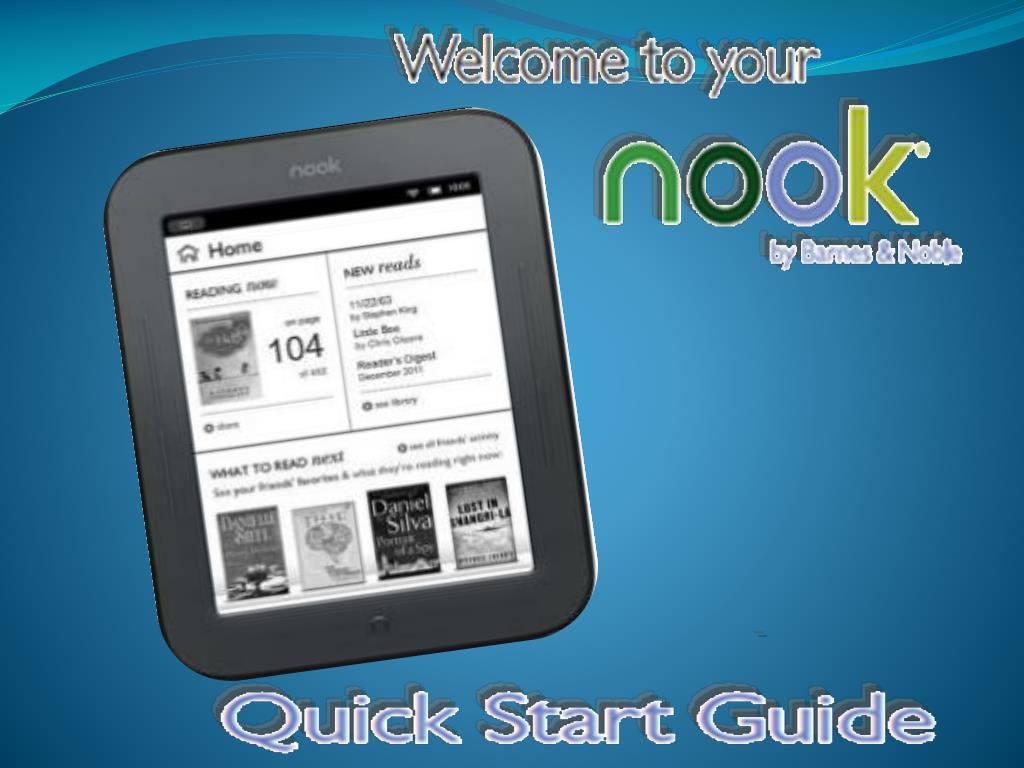
Each student is assigned a NOOK and is responsible for its care. Damage to the device will require replacement as per CCSD Acceptable Use Policy (AUP). Important instructions include never turning off your NOOK or changing any settings. Use the Quick Start Guide for navigation, waking up the device, accessing the library, and utilizing reading tools like highlighting and dictionary look-up features. Follow these guidelines to ensure a smooth experience with your NOOK. If you have questions, please ask for assistance!
Télécharger la présentation 
Politique de téléchargement : le contenu du site vous est fourni TEL QUEL pour votre information et votre usage personnel ; il ne peut être vendu, concédé sous licence ni partagé sur d’autres sites sans l’accord de son auteur.Le contenu vous est fourni TEL QUEL, pour votre information et votre usage personnel uniquement. Téléchargez la présentation en cliquant sur ce lien. Lors du téléchargement, si vous ne parvenez pas à télécharger une présentation, l’éditeur a peut-être supprimé le fichier de son serveur.Pendant le téléchargement, si vous ne parvenez pas à obtenir une présentation, le fichier a peut-être été supprimé par l’éditeur.
F I N