Guide to eHealth Account Rectification Process
This guide outlines the steps to rectify your eHealth account details efficiently. To make changes, press the document number related to your account and update the necessary information. After rectifying the details, ensure to press the ‘Save’ button. If you wish to remove the account instead, use the ‘Remove’ button. Confirm the rectified information by pressing the ‘Confirm’ button. Once completed, the details will undergo verification. For further assistance, refer to the provided guide. Thank you for watching!

Guide to eHealth Account Rectification Process
E N D
Presentation Transcript
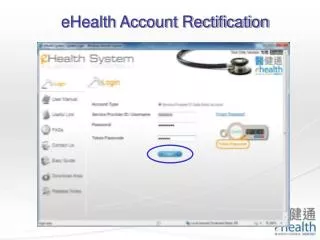
eHealth Account Rectification You may press the document no. to rectify the account details.
eHealth Account Rectification You may rectify the information as needed. Then press ‘Save’ button. Or you may remove the account by pressing ‘Remove’ button.
eHealth Account Rectification You have to confirm the rectified information. You may press ‘Confirm’ button to confirm the change. After the rectification, the details will be verified again.