Introduction to Elluminate Live: A Comprehensive Tutorial for New Users
320 likes | 444 Vues
This tutorial is designed to help you navigate and utilize the features of Elluminate Live effectively. Engage in the classroom environment by exploring various functionalities before your session begins. With instructor permission, you may have moderator privileges for enhanced interaction. Get familiar with essential tools, including audio setup, chat options, and whiteboard features. Learn to manage screen sharing, raise hands for questions, and save your work. You'll be equipped with the knowledge to participate actively in sessions and make the most of your learning experience.


Introduction to Elluminate Live: A Comprehensive Tutorial for New Users
E N D
Presentation Transcript
This tutorial is designed to help you better understand how to use the Elluminate Live classroom. One of the best things you can do is to go into the classroom and “play” with features before class. Your instructor may have to give you moderator privileges for some things. Speak to him or her about your particular class.
This is the participant whiteboard and work area in Elluminate.
If you cannot hear or talk Select Tools>Audio>Audio Setup Wizard
SAVE You can save Chat or Whiteboard screen.
Print You can print Current Screen or Selected Screens.
Click here for polling. You might see “A B CD E” instead of and X.
Click here to share desktops and applications. More on this later.
Take notes that are “aligned” with content of the class session.
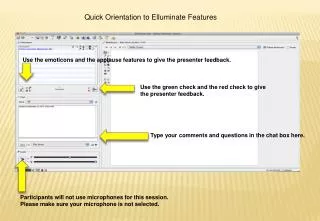
You can also clap from here and smile. Your “comments” appear in the white space above.
You can chat by entering text here, then clicking send. You can send it to the whole room or to certain people. The moderator will see all comments. It is best no t to say anything negative, especially about the moderators.
To talk, you MUST click on button. You are “active” if the microphone is yellow.
CRITICAL Remind me to click on the little red dot so I record the session!!!!
Click on any icon for it to appear on the whiteboard. After placing it, you (and others) can move it around.
You are a participant. You can tell because your name is NOT bold. (It probably is not Jose either.)
When you are a moderator, you have lots of fun extra things to do.
This screen appears after clicking on the file folder. Default is OK.
Again, default value is fine. Click on OK.
Navigate and back and forth with arrows. These arrows WILL be grayed out if you are in participant mode. More features later. . .