Download
1 / 19
190 likes | 307 Vues
Many data sources, such as CSV and Excel files, can be challenging to import into Bentley Map. VRT (Virtual Datasource) files simplify this process by describing the data source, including geometric definitions and spatial references, enabling easy integration of point features. This guide covers the essential components of VRT files, their XML structure, and provides an example setup using a CSV file. Learn how to properly configure your imports to ensure data integrity and location accuracy.

E N D
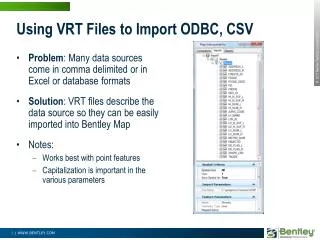
Using VRT Files to Import ODBC, CSV • Problem: Many data sources come in comma delimited or in Excel or database formats • Solution: VRT files describe the data source so they can be easily imported into Bentley Map • Notes: • Works best with point features • Capitalization is important in the various parameters
What is VRT (Virtual Datasource) • An XML format file that describes the format of the source data • Data source • Feature name • Spatial Reference System • Field encoding Sample VRT <OGRVRTDataSource> <OGRVRTLayer name="SurveyMon"> <SrcDataSource>SurveyMon.csv</SrcDataSource> <GeometryType>wkbPoint</GeometryType> <LayerSRS></LayerSRS> <GeometryField encoding="PointFromColumns" x="Easting" y="Northing"/> </OGRVRTLayer> </OGRVRTDataSource>
Common Parts of VRT file Name of feature <OGRVRTDataSource> <OGRVRTLayer name="SurveyMon"> <SrcDataSource>SurveyMon.csv</SrcDataSource> <GeometryType>wkbPoint</GeometryType> <LayerSRS></LayerSRS> <GeometryField encoding="PointFromColumns" x="Easting" y="Northing"/> </OGRVRTLayer> </OGRVRTDataSource>
Common Parts of VRT file <OGRVRTDataSource> <OGRVRTLayer name="SurveyMon"> <SrcDataSource>SurveyMon.csv</SrcDataSource> <GeometryType>wkbPoint</GeometryType> <LayerSRS></LayerSRS> <GeometryField encoding="PointFromColumns" x="Easting" y="Northing"/> </OGRVRTLayer> </OGRVRTDataSource> Source for feature
Common Parts of VRT file <OGRVRTDataSource> <OGRVRTLayer name="SurveyMon"> <SrcDataSource>SurveyMon.csv</SrcDataSource> <GeometryType>wkbPoint</GeometryType> <LayerSRS></LayerSRS> <GeometryField encoding="PointFromColumns" x="Easting" y="Northing"/> </OGRVRTLayer> </OGRVRTDataSource> Feature Type
Common Parts of VRT file <OGRVRTDataSource> <OGRVRTLayer name="SurveyMon"> <SrcDataSource>SurveyMon.csv</SrcDataSource> <GeometryType>wkbPoint</GeometryType> <LayerSRS></LayerSRS> <GeometryField encoding="PointFromColumns" x="Easting" y="Northing"/> </OGRVRTLayer> </OGRVRTDataSource> Spatial Reference
Common Parts of VRT file <OGRVRTDataSource> <OGRVRTLayer name="SurveyMon"> <SrcDataSource>SurveyMon.csv</SrcDataSource> <GeometryType>wkbPoint</GeometryType> <LayerSRS></LayerSRS> <GeometryField encoding="PointFromColumns" x="Easting" y="Northing"/> </OGRVRTLayer> </OGRVRTDataSource> Encoding (Column names containing XY(Z) values)
CSV Example Source Data: SurveyMon.csv Easting,Northing,ID,Elevation 602639.5381,4049623.398,1,282.9576447 669949.1987,4061243.25,2,282.3723275 617433.4852,4004901.709,3,265.455676 640922.0652,4096213.903,4,228.7933358 680351.1314,4008944.322,5,211.2217422 689200.8667,4010622.815,6,278.4353313 600382.0976,4086158.497,7,203.1683236 630393.1237,4095834.27,8,262.3779305 644160.8595,4016882.563,9,261.6596222 660532.9288,4092362.074,10,243.4360725 VRT File <OGRVRTDataSource> <OGRVRTLayer name="SurveyMon"> <SrcDataSource>SurveyMon.csv</SrcDataSource> <GeometryType>wkbPoint</GeometryType> <LayerSRS></LayerSRS> <GeometryField encoding="PointFromColumns" x="Easting" y="Northing"/> </OGRVRTLayer> </OGRVRTDataSource>
The Map Interoperability Tool • File -> Map Interoperability • Import -> New Import • Add file… • Set All File Types • Show Properties -> Ungrouped
Import the Data • All headings from CSV are present, including system generated FID • Set any WHERE clauses or spatial constraints • Set any required symbology • Import the data
Review the Imported Features • Feature named correctly • <OGRVRTLayer name="SurveyMon"> • Located at correct location • <GeometryField encoding="PointFromColumns" x="Easting" y="Northing"/> • All other properties imported
A Note About Coordinate Systems • <LayerSRS></LayerSRS> specifies the geographic coordinate system (GCS) of the input data • Examples are: • <LayerSRS>WGS84</LayerSRS> • <LayerSRS>GEOGCS [ "GDA94", DATUM ["Geocentric Datum of Australia 1994 (EPSG ID 6283)", SPHEROID ["GRS 1980 (EPSG ID 7019)", 6378137.0, 298.257222101]], PRIMEM [ "Greenwich", 0.000000 ], UNIT ["Decimal Degree",0.0174532925199433]]</LayerSRS>
A Note About Coordinate Systems • Because the GCS can be difficult to define, a simple workaround is to omit the GCS definition and import to a DGN to which the GCS of the data has been assigned. • Reference to other DGN files or reassign GCS • Sample data is MTM27-10 • Import to DGN file with GCS defined as: • Reassign GCS as required for transformation
Database and Spreadsheet Sources • Require an ODBC connection to be setup which is specified in the data source parameter • SrcDataSource>ODBC:SurveyMonXLS</SrcDataSource> • Because there can be multiple tables or sheets in each source, an additional parameter is required • <SrcLayer>MonumentData</SrcLayer> • This defines the table or range name in the source • All other parameters remain the same
ODBC Example – Excel Spreadsheet • Setup ODBC link to XLS file • File must be in Excel 97 – 2003 format • Data is as shown • Range Name (MonumentData) defines the extent of the cells to import including the column headers
ODBC Example – Excel Spreadsheet VRT File <OGRVRTDataSource> <OGRVRTLayer name="SurveyMon"> <SrcDataSource>ODBC:SurveyMonXLS</SrcDataSource> <SrcLayer>MonumentData</SrcLayer> <GeometryType>wkbPoint</GeometryType> <LayerSRS></LayerSRS> <GeometryField encoding="PointFromColumns" x="Easting" y="Northing"/> </OGRVRTLayer> </OGRVRTDataSource>
ODBC Example – Access Database • Setup ODBC link to MDB or ACCDB file • Data table is as shown • Source layer is the name of the table
ODBC Example – Access Database VRT File <OGRVRTDataSource> <OGRVRTLayer name="SurveyMon"> <SrcDataSource>ODBC:SurveyMonMDB</SrcDataSource> <SrcLayer>SurveyMon</SrcLayer> <GeometryType>wkbPoint</GeometryType> <LayerSRS></LayerSRS> <GeometryField encoding="PointFromColumns" x="Easting" y="Northing"/> </OGRVRTLayer> </OGRVRTDataSource>
Linear and Polygon Sources • Require a custom format for the data • Geometry type is • <GeometryType>wkbLineString</GeometryType> • <GeometryType>wkbPolygon</GeometryType> • For more information and examples: http://communities.bentley.com/products/geospatial/desktop/f/5924/t/65028.aspx