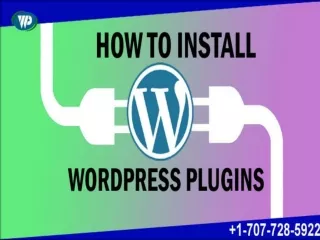
Simplifying Plugin Management: A Step-by-Step Guide for WordPress Users
Effectively manage WordPress plugins is essential for maintaining a secure, stable, and high-performing website. By following the step-by-step guide outlined in this blog post, you can simplify plugin management and optimize your WordPress website. Remember to select plugins carefully, keep them updated, and address any compatibility issues promptly. Regularly auditing your plugins and maintaining a clean plugin environment will contribute to a seamless user experience and the long-term success of your website.

Simplifying Plugin Management: A Step-by-Step Guide for WordPress Users
E N D
Presentation Transcript
Simplifying Plugin Management: A Step-by-Step Guide for WordPress Users Managing plugins is a critical aspect of maintaining a WordPress website. Plugins offer enhanced functionality, customization options, and improved user experience. However, without proper management, plugins can become a burden, negatively impacting website performance and security. In this comprehensive guide, we will walk you through the step-by-step process of managing WordPress plugins effectively. From selecting the right plugins to updating them regularly, we'll cover it all. 1. Understanding the Importance of Plugins for WordPress Websites Plugins are like power-packed tools that enhance the functionality of your WordPress website. They enable you to add features such as contact forms, social media integration, e-commerce capabilities, search engine optimization, and much more. Without plugins, your website may lack crucial elements needed to engage visitors and achieve your website goals. Therefore, it is essential to select and manage plugins wisely. 2. Choosing the Right Plugins for Your Website With thousands of plugins available, it's crucial to choose the ones that align with your website's objectives. Consider factors like functionality, user reviews, compatibility, and support. Research the top plugins in the categories you need, such as security, performance optimization, SEO, and design. Additionally, prioritize well-maintained and regularly updated plugins to ensure compatibility with the latest versions of WordPress. 3. Best Free Plugins for WordPress WordPress offers an extensive collection of free plugins that provide excellent functionality. Here are some highly recommended free plugins across various categories: a) Yoast SEO: Boost your website's search engine optimization with this feature-rich plugin. b) Contact Form 7: Create and manage multiple contact forms effortlessly.
c) WooCommerce: Add robust e-commerce capabilities to your WordPress website. d) multifunctional plugin. Jetpack: Enhance performance, security, and design with this e) WP Super Cache: Improve website speed and performance with caching technology. 4. Managing WordPress Plugins Efficiently managing your plugins ensures smooth website operation and security. Here's a step-by-step guide: Step 1: Regularly Review Installed Plugins Evaluate the plugins on your website regularly. If you find any unused or outdated plugins, deactivate and delete them to minimize potential vulnerabilities. Step 2: Update Plugins Promptly Keeping your plugins up to date is crucial for performance and security. Enable automatic updates for essential plugins, but remember to create a backup before updating. Step 3: Test Compatibility Before updating WordPress plugins, ensure they are compatible with the current version of WordPress. Test new updates on a staging environment or use a plugin compatibility checker. Step 4: Backup Your Website Create regular backups of your WordPress website, including the plugin files and database. This precautionary measure allows you to restore your website quickly if any issues arise during the update process. Step 5: Update WordPress Core Regularly update your WordPress core to ensure compatibility with the latest plugin versions. This will also provide you with new features and security patches. 5. Common Challenges and Troubleshooting Despite careful management, you may encounter challenges with plugin updates. Here are some common issues and their troubleshooting steps: a) Compatibility Issues: If a plugin update causes compatibility problems, try disabling it temporarily and contact the plugin developer for assistance. b) Conflicts with Themes: Some plugins may conflict with certain themes. If you experience issues after an update, switch to a default theme temporarily to determine if the theme is causing the problem.
c) PHP Version Compatibility: Ensure that your hosting environment supports the minimum PHP version required by your plugins. Outdated PHP versions may result in plugin conflicts or errors. d) Insufficient Memory Limit: If you encounter memory-related errors during updates, increase the PHP memory limit in your website's configuration file or contact your hosting provider for assistance. 6. Seeking Professional Help If you're unsure about managing plugins or encounter persistent issues, consider seeking professional assistance. WordPress developers and support forums can provide valuable insights and solutions tailored to your specific needs. Conclusion: Effectively manage WordPress plugins is essential for maintaining a secure, stable, and high-performing website. By following the step-by-step guide outlined in this blog post, you can simplify plugin management and optimize your WordPress website. Remember to select plugins carefully, keep them updated, and address any compatibility issues promptly. Regularly auditing your plugins and maintaining a clean plugin environment will contribute to a seamless user experience and the long-term success of your website.