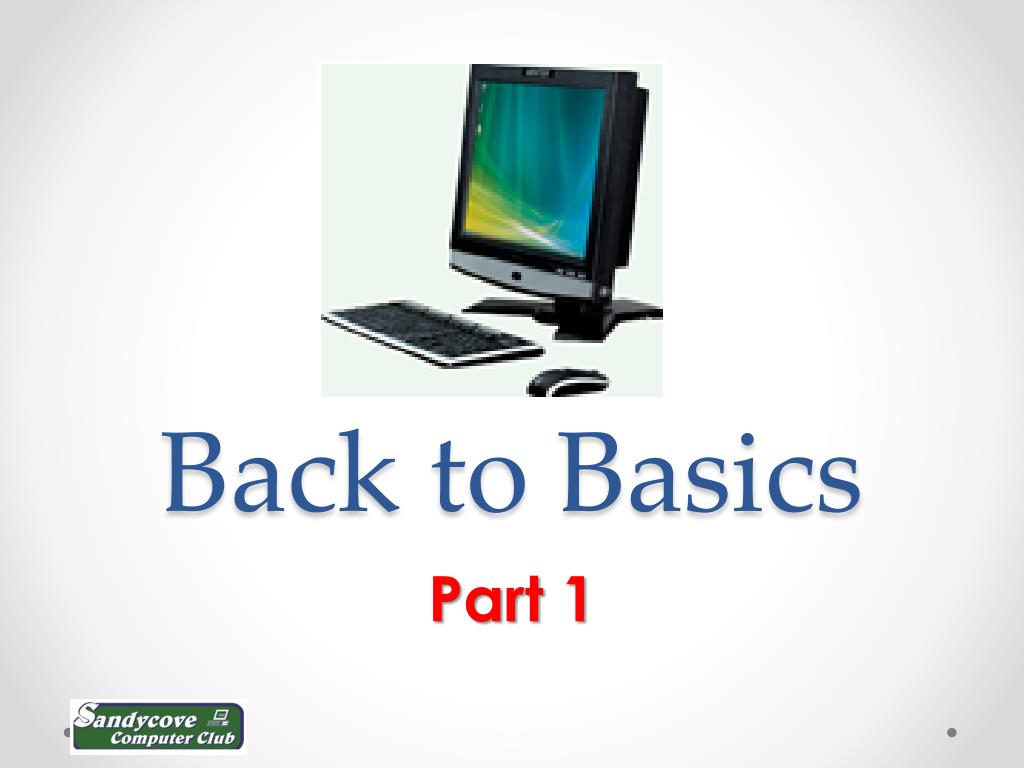
Back to Basics Part 1
WHAT BASICS? • Hardware • Standard Software • Terminology
HARDWARE
ON THE OUTSIDE • Screen • Keyboard • Pointing Device – Mouse and/or Touchpad
ON THE OUTSIDE
ON THE OUTSIDE • Most Computers also have: • Microphone – may be built-in or separate • Speakers – may be built-in or separate • Many also have a Webcam [Web Camera] • Connectors for other bits like Printers
ON THE OUTSIDE
CONNECTORS • Connectors are there to let the computer use or operate other pieces of equipment • Connectors come in different shapes and sizes – for technical reasons – they are often colour coded to help work out what goes where • NEVER FORCE A CABLE OR DEVICE IN TO A CONNECTOR!
KEYBOARDS
KEYBOARDS
KEYBOARDS
KEYBOARDS • Keyboards are usually language specific [English, French etc.] with respect to key positions & markings. • Keyboards can be switched to alternative language layouts – can be confusing • Some keyboards have alternative key options accessed by combination key depressions
MICE? MOUSES? MEESE? Two button Three Button Four Button
MORE ON MOUSE • One Click, Two Click, Left Click, Right Click • Decisions – Decisions – but so helpful! • THE POWER OF RIGHT CLICK IS IN YOUR GRASP – MORE LATER!
ON THE INSIDE
ON THE INSIDE • The “Mother Board” which includes: • The Processing Unit [Processor] • RAM [Random Access Memory- used by YOU] • ROM [Read Only Memory- used by the COMPUTER] • Controllers for various functions • May be separate or built into the Mother Board
MEMORY & STORAGE • It is important not to confuse these two things • Memory [RAM] holds it’s information ONLY until the electricity is switched off – then it is lost forever! Basically the “work in progress” area • Storage [ Hard Drives/Flash Drives/CD & DVD Drives] do NOT lose their information when the electricity is switched off.
MEMORY • In most modern computers, RAM is measured in Gigabytes [Gb] – In computers used at home, 1 to 16 Gigabytes is the range – 3 to 6Gb is more typical • For any given version of Windows, a minimum amount of memory is needed. However, with just that minimum, the computer is likely slow • Usually need at least 1Gb more than the minimum for acceptable performance – more is always better IF it is usable – being there does NOT imply this • Your computer may be physically limited as to how much memory it can have
STORAGE • This varies according to type • Hard Drives are typically from 250 Gigabytes to 1 ½ Terabytes • Flash drives are now usually from 2 to 64 Gigabytes • DVD’s – either 4.7 Gigabytes or 9.5 Gigabytes • CD’s are 700 Megabytes
STORAGE • INTERNAL HARD DRIVE: • Operating System including Services and Utilities • Application Programs • Data – the work created by you [Files, e-mails, etc.] • Can be used for Backup but has risks • EXTERNAL HARD DRIVE: • Full Backup including System image • Extra Data Storage • Archiving • Moving Data between computers • FLASH DRIVE: • Backup – probably Data only • Moving Data between computers
STORAGE • DVD/CD: • Full Backup including System image • Extra Data Storage • Archiving • Moving Data between computers • Relatively inefficient – especially CD. Costly unless use rewritable formats but still need many disks for full backup
WHAT DOES THIS MEAN? • It means - How much information can be stored in the “device” • The numbers you are going to see are to give an idea only – there are small differences that are only really important at a higher technical level • Easiest way – and a simplification - to think is: • 1 Byte = 1 Letter • A= 1 Byte, AB = 2 Bytes ABC = 3 Bytes
WHAT DOES THIS MEAN? • 1 Kilobyte = 1000 Bytes = 1,000 Letters • 1 Megabyte = 1000 Kilobytes = 1,000,000 Letters • 1 Gigabyte = 1000 Megabytes = 1,000,000,000 Letters • 1 Terabyte = 1000 Gigabytes = 1,000,000,000,000 Letters
IN REAL LIFE? • A letter of one full page – 100 Kilobytes • Picture from a digital camera – 2 Megabytes • A Movie – 5 Gigabytes
LET’S GET SWITCHED ON!
WHAT JUST HAPPENED? • A small program [The “Boot” program] built into the Mother Board “woke up” the computer and started to load the Operating System – the program that runs and manages the computer and helps you use the computer • The Operating System then loaded other software that it [or you] needs to work or that it has been told to load by “the user”
THESE INCLUDE: • Programs used by the computer itself to run and manage things - Services • Programs used by you to run and manage things – Utilities • Programs used by you to do things you want to do - Applications
IT’S TIME TO EXPLORE THE DESKTOP JUNGLE