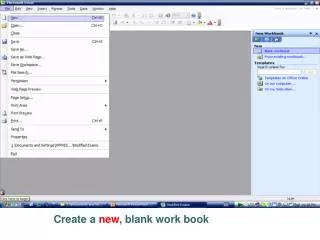
Create a Table and Define Fields in a New Blank Database
150 likes | 271 Vues
This guide outlines the process of creating and managing tables in a new blank Access database. You will learn how to create a table, define fields, and manipulate data in both DESIGN and DATASHEET views. Discover how to save changes, import data from sources like Excel, and organize objects within the Navigation Pane. It also covers using database templates for efficiency and modifications. Follow the tutorial to efficiently manage your database structures and enhance your data organization skills.


Create a Table and Define Fields in a New Blank Database
E N D
Presentation Transcript
Save and Close • When you close an Access table, any changes made to the records are saved automatically. • You will be prompted to save changes to design of the table or the layout of Datasheet view. • Saving the entire DB is a different action then saving a table or other object.
Two views You can manipulate database tables in either DATASHEET view or DESIGN view. I usually use DESIGN view to create fields and their associated properties. Then use DATASHEET view to enter, modify, add, and delete records.
Create a Table and Define Fields • You may use either table VIEW to: • Add fields • Rename fields • Change data types • Change field properties • I’ll demonstrate this in DESIGN view and the chapter tutorial will instruct you to do this in DATASHEET view. Both are fine!
Create a Table • Adding data into fields for a record in a table must be done in DATASHEET view. Data is typed in just like data was entered in a Excel spreadsheet.
Create a Table • Data may also be entered by Importing data from some other source (like an Excel spreadsheet.
Change the Structure of Tables and Add a Second Table Browse for data to import and then allow import wizard to prompt you.
Change the Structure of Tables and Add a Second Table • Adding a second table to a database by importing an Excel spreadsheet
Create a Database Using a Template • A database template contains pre-built tables, queries, forms, and reports to perform a specific task. • You do not have to create the objects. • All you need to do is enter your data and modify the pre-built objects to suit your needs.
Organize Objects in the Navigation Pane Objects include Tables, queries, forms, and reports
Save and Close • When you close an Access table, any changes made to the records are saved automatically. • You will be prompted to save changes to design of the table or the layout of Datasheet view. • Saving the entire DB is a different action then saving a table or other object.