Create Engaging Quiz Questions Easily
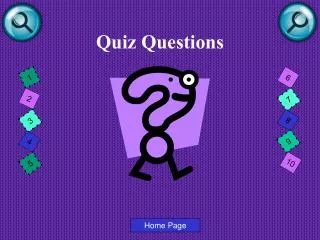
This template streamlines the process of creating quiz questions. Simply duplicate the yellow button to hyperlink to your custom question slides. You can add multiple questions by copying the slide and entering your content. Ensure the correct answer button is placed ahead of other options to direct users to the "That's Correct!" slide. Use this efficient format to enhance engagement and learning. Follow the directions to modify the template and provide an interactive quiz experience for your audience.

Create Engaging Quiz Questions Easily
E N D
Presentation Transcript
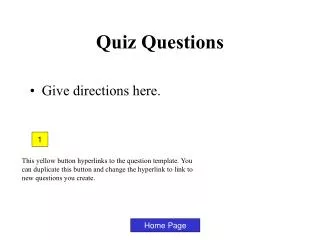
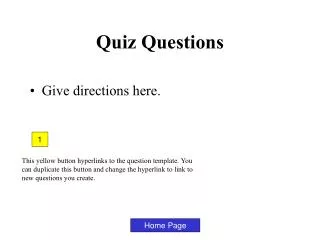
Quiz Questions • Give directions here. 1 This yellow button hyperlinks to the question template. You can duplicate this button and change the hyperlink to link to new questions you create. Home Page
That’s Correct! Click here to continue.
Sorry, that’s not correct! Click here to continue.
Ask your question here? Put this first button in front of the correct answer – it is programmed to go to the “That’s correct!” slide. • Answer 1 • Answer 2 • Answer 3 • Answer 4 Directions: 1. Duplicate this slide for as many questions as you need. 2. Write your question/answers above on each slide. 3. Put the correct button in front of the correct answer. 4.Delete this text. Home Page