Sketchlet Tutorial Variables
Learn how to use variables in Sketchlet to exchange messages, manipulate data, and trigger actions. Understand the scope, interface, and examples of working with variables.

Sketchlet Tutorial Variables
E N D
Presentation Transcript
Sketchlet TutorialVariables sketchet.sf.net Željko Obrenović obren.info/
Agenda • Variables • Using variables
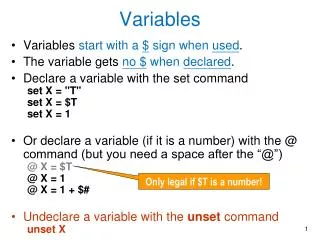
Variables • Many elements of Sketchlet communicate indirectly by exchanging messages through a centralized repository of variables. • Variables can have two scopes: page or global • Variables provide a simple and uniform abstraction mechanism, enabling a designer to work with very diverse elements using the same set of operations. • Properties of freehand sketches, such as their position or transparency, or user actions such as item selections, can be mapped to blackboard variables.
Variables • Spreadsheets or scripts can subsequently read, process, and update these variables. • I/O services can receive arguments and send back results through such variables. • Lastly, through extension mechanisms other platforms can update, read or register for the notification of variables.
Interface for Working with Variables System event variables Delete selected variables • Variables can be accessed through a spreadsheet-like interface, making all data immediately visible and manipulatable. • A designer can directly observe and update variables. Derived variables Disable variables’ updates Add new variable Dynamic variables Filter
Examples of Using Variables • Capturing user motion • Setting region and sketch properties • Updating variables based on events • Actions triggered by variable updates
Capturing User Motion in Variables • Step 1: Creating variable “rot”
Capturing User Motion in Variables • Step 2: drag-and-drop the variable on the active region motion mapping icon
Capturing User Motion in Variables • Step 3: select properties of motion that you want to capture in the variable • In this exampleit is “rotation”
Capturing User Motion in Variables • Step 4: interact with the region and observe variables changes • In this example, dragging the region with right mouse button will rotate it and update the variable “rot”
Setting Region and Sketch Properties • You can drag-and-drop the variable on the region properties icon, and select property
Setting Region and Sketch Properties • In this example we are using variable “rot” to control rotation property of another region
Updating Variables on Events • Events • Mouse Events • Keyboard Events • Sketch events: entry, exit • Variable Actions • Update variable • Increment variable • Append variable