Jive Phone System
Discover the capabilities of the Jive Phone System, now part of GoTo Connect. This hosted business phone solution offers a full range of features, including advanced phone and handset functions, voicemail management, faxing, and SMS texting. Learn how to utilize Jive's mobile and desktop applications for seamless communication and collaboration. Whether you're using the T-41S for intensive use or the T-21S for lighter tasks, this guide provides essential setup instructions. Integrate easily with GoTo Meeting for video conferencing and enhanced team interactions.

Jive Phone System
E N D
Presentation Transcript
Agenda • Introduction – What is Jive and Go to Connect? • Phone/Handset Features • Jive desktop and mobile apps • Voicemail, dial plans, ring groups • Faxing • Texting • Go To Meeting • Questions
Jive- Go To Connect • Jive is a hosted phone system for businesses that brings all the features of an Enterprise phone system at a lower cost • Jive was purchased by Go To Meeting/LogMeIn • As part of this purchase the name of the phone system is changing to Go To Connect to fit into the product line better. • Spalding gets the benefit of both products, business voice system and video conferencing, web sharing platform.
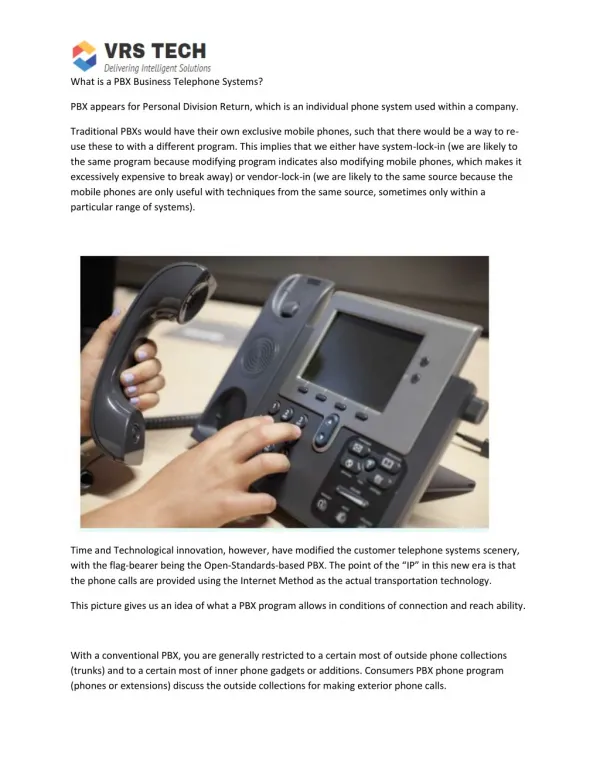
Phone Features and Setup • We have two models of phones one for an intensive user and one for a light user. • The T-41S model has more buttons for more lines and features and will usually be paired with the ability to use a conference bridge and Go to Meeting. • The T-21S has fewer buttons and will be used for faculty, staff or student workers who generally use their phone less.
Phone Buttons • T41S- https://jive.com/resources/support_page/phone-guides/yealink-t21p-e2/?_ga=2.20371761.84549276.1561049302-1807445204.1561049302 • T21P- E2https://jive.com/resources/support_page/phone-guides/yealink-t21p-e2/?_ga=2.20371761.84549276.1561049302-1807445204.1561049302
Voicemail • 1. Press the voicemail button on your phone or dial *99 to access the voicemail menu. • 2. Press 0 for Mailbox Options. • 3. Record the desired greeting type: • Press 1 to record an Unavailable Message—this is the default and most common greeting used for a voicemail box. • Press 2 to record a Busy Message—this alternate greeting can be recorded for system admins to use in a dial plan. • Press 3 to record a Name—this greeting plays the recorded name followed by an automated message (only plays if no unavailable message exists). • Press 4 to record a Temporary Message—once recorded, this message overrides any other voicemail greetings. In order to remove a temporary message, it must be deleted. • 4. Follow the voice prompts to accept, review, or re-record the recording.
Jive Desktop • Application for phone • Replaces desktop phone if you have a headset • Has directory • Links to Go to Meeting
Jive Mobile • App for Android and iOS • Control phone settings • Make and receive calls
Faxing • Inbound faxes can come to any extension. • Outbound faxing requires a fax passcode in subject and email address to the fax number + @spalding.fax.onjive.com • https://support.goto.com/jive/help/how-do-i-send-a-virtual-fax-jive-send-virtual-fax
Texting • You can send and receive texts with your office number using the Jive web, desktop or mobile app • To send to a number, you need to add it as a contact first.
Go To Meeting • You can use a personalized Go To Meeting account • Go to Meeting can be used for advising, class meeting, board meetings, working from home and collaborating with a team etc. • There is a plugin for Outlook to help with scheduling meetings (add them to Outlook and Go to Meeting at the same time). • You can use your built-in web cam on your PC or purchase a more sophisticated camera with built-in speakers and microphones.
Conferencing • Conferencing can be done using conference button if you are on a call. • A unique conference bridge can be setup for you or your department to use for Board meetings, department meetings, office hours or other purposes. • This can be linked to your Go to Meeting account as well.