Creating and Managing New Groups in the Open Discussion Forum
Learn how to create and manage new groups in the Open Discussion Forum. Start by logging in with your username and password, then navigate to the forum under the "Connect" dropdown menu. Choose a category for your new group, and enter the group owner's email. Provide a brief description explaining the group's purpose. Set community guidelines and policies, and create welcoming and farewell email messages. After submitting, await approval to officially launch your group. Stay engaged with notifications about your group’s activity.

Creating and Managing New Groups in the Open Discussion Forum
E N D
Presentation Transcript
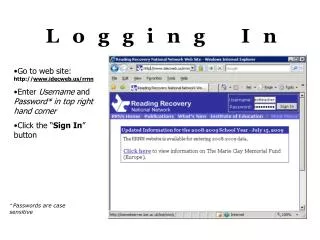
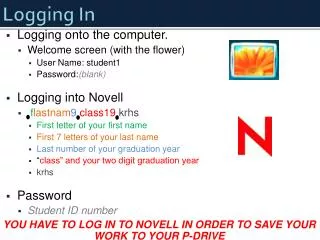
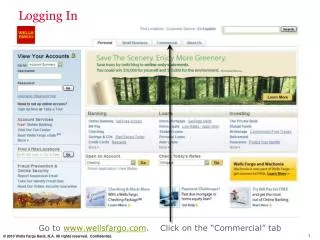
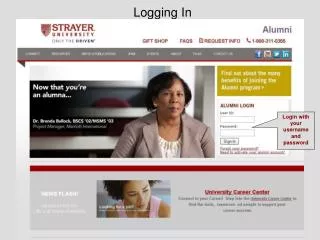
Logging In Login with your username and password
Navigate to the Open Discussion Forum Mouse over the “Connect” drop down menu, highlight “Open Discussion Forum” link and click on it
List of Existing Groups by Category Click on the category to which the new Group will be aligned.
Group Owner’s Email Group Owner’s email address Default = Group Creator’s email address Click Next
Description, Community and Policies Add a brief description about the new group. e.g. why it was created. Select Community for newly created Group Set Policies for group members. Click Next
Welcome and Farewell Messages Create the Group Email Welcome Message Create the Group Email Farewell Message Click “Create this Group”
Confirmation Message Confirmation message will be displayed, but group creation request must be approved prior to launch and use
Email Approval Notification Group creator will receive email notification once request has been approved
Email Subscription Notification Group creator will also be automatically subscribed to the group, and receive an email notification of the subscription
Group List All Groups created by a specific site member will be listed here
Group Home Page Group Home Page contains all the management tools for the newly created Group Now Spread the word and build your Group
Questions, comments or suggestions • Have a question?Visit FAQ's or download an Alumni brochure.Office of Alumni Relations676 Independence ParkwayChesapeake, VA 23320E-mail: strayeralumni@strayer.edu
Thank YouSubmitted by:Vincient (Tony) MartinBSCN '06Newport News Campus