
Uploaded by
osman
5 SLIDES
148 VUES
50LIKES
Student Audio Recording Tutorial for Audacity
DESCRIPTION
Learn how to record and export dialogue using Audacity. Save as MP3 in the designated folder on the P: drive, and test it in Media Player. Follow the steps to ensure a successful recording and playback experience.
Download
1 / 5
Télécharger la présentation 
Student Audio Recording Tutorial for Audacity
An Image/Link below is provided (as is) to download presentation
Download Policy: Content on the Website is provided to you AS IS for your information and personal use and may not be sold / licensed / shared on other websites without getting consent from its author.
Content is provided to you AS IS for your information and personal use only.
Download presentation by click this link.
While downloading, if for some reason you are not able to download a presentation, the publisher may have deleted the file from their server.
During download, if you can't get a presentation, the file might be deleted by the publisher.
E N D
Presentation Transcript
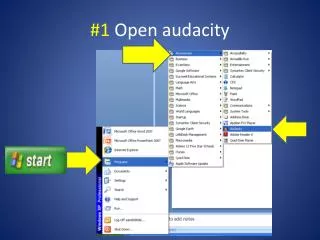
#3 Export recording as MP3 to the P drive/Student/robertsamsel/your period’s folder
#5 Test your recording in Media player • Go to my computer • Select the file in the P: drive • Right click the file and • Click open with Media Player • If it worked; close Audacity and do the reading.










More Related