

SlideServe
Menu
Préférences
© SlideServe · v2026

START HERE

peigi avatar
37 diapositives · 572 Views · Aug 08, 2014

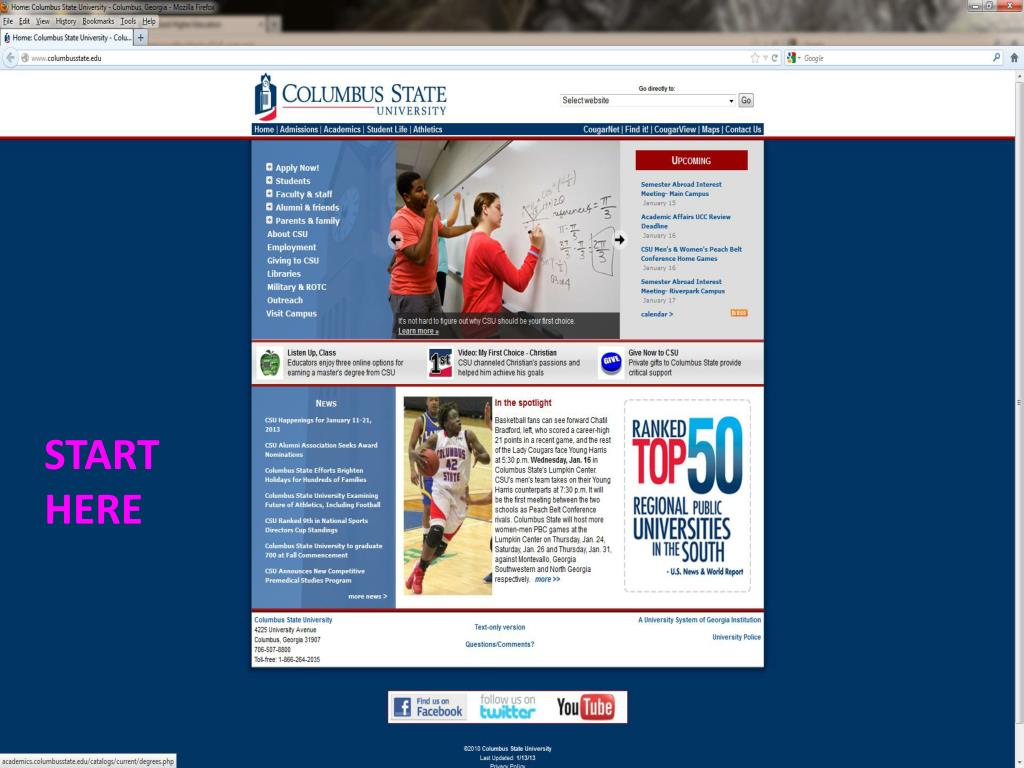
START HERE. START HERE. Scroll Down . START HERE. Select term and click “Submit” . Enter CRN (Course Reference Number) directly or click “Class Search” to look up classes. CRNs can also be found in the printed class schedule.
START HERE - slide 1
01 / 37START HERE
1 / 17

Télécharger la présentation

START HERE
Une image / un lien ci-dessous est fourni (tel quel) pour télécharger la présentation

Politique de téléchargement : le contenu du site vous est fourni TEL QUEL pour votre information et votre usage personnel ; il ne peut être vendu, concédé sous licence ni partagé sur d’autres sites sans l’accord de son auteur.Le contenu vous est fourni TEL QUEL, pour votre information et votre usage personnel uniquement. Téléchargez la présentation en cliquant sur ce lien. Lors du téléchargement, si vous ne parvenez pas à télécharger une présentation, l’éditeur a peut-être supprimé le fichier de son serveur.Pendant le téléchargement, si vous ne parvenez pas à obtenir une présentation, le fichier a peut-être été supprimé par l’éditeur.

F I N

Plus de contenu associé

Transcription de la présentation
  1. START HERE

  2. STARTHERE

  3. Scroll Down

  4. STARTHERE

  5. Select term and click “Submit”

  6. Enter CRN (Course Reference Number) directly or click “Class Search” to look up classes. CRNs can also be found in the printed class schedule.

  7. You can select all courses for a subject, or limit the courses to certain instructors, times, days, etc. Here we have requested all History courses that meet on Mon., Wed., & Fri. Click the “Class Search” button after selecting a subject any other options you desire.

  8. Check the box by the course you want to add and then click “Register” button.

  9. Your class has been added and shows up under “Current Schedule”. You can repeat this process to add other classes.

  10. Registration Error – This course has a prerequisite.

  11. Registration Error – Time conflict with a course on your current schedule.

  12. To drop a course, select “Web Drop” from the drop down menu and then click “Submit Changes” button.

  13. When you are satisfied with your schedule, click these links to view your fees, print an invoice, print a schedule, or buy books online.

  14. If you have Financial Aid which has been approved, it will appear here and will be deducted from the balance due. * If you would like to pay fees at a later date, you can return to this page by clicking “Fees” on the Registration Menu. If you would like a copy of your schedule click the “Printable Schedule” link. *

  15. $939.00 If you click the “Pay Fees Online with a Credit Card” link you will be asked to enter your credit card information. This is a secure site. Your information is encrypted before transmitting .

  16. To check your financial aid status, go to the Financial Aid Section of Enrollment Services

  17. Click the “Registration Status” link.

  18. This is the printable version of the detailed student schedule. You can print this page for your use.

  19. To check your financial aid status, go to the Financial Aid Section of Enrollment Services

  20. Click the “Overall Status” link.

  21. Select the Aid Year (Academic Year) from the drop down box then click the “Submit” button.

  22. Click the various underlined links to see more detailed information about each item listed.

  23. To view the CSU online Catalog,Scroll Down

  24. Next, Select “Academic Catalog” menu item.

  25. Next, Select Academic Year

  26. You may exit CougarNet by clicking on the “logout” button on the top of any page.