PipelineMT/Registration
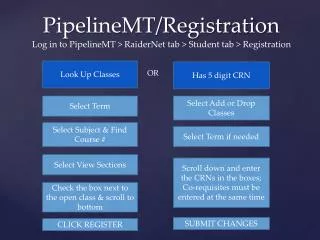
Learn the step-by-step process to register for classes using the PipelineMT system. Start by logging into RaiderNet and navigating to the Student tab, then proceed to the Registration Look-Up Classes section. You can enter a 5-digit CRN or select a term to find your desired courses. Make sure to select any co-requisites simultaneously. After checking the open classes, submit your changes and click 'Register' to finalize your enrollment. Follow these instructions to ensure a smooth registration experience.

PipelineMT/Registration
E N D
Presentation Transcript
Log in to PipelineMT > RaiderNet tab > Student tab > Registration Look Up Classes Has 5 digit CRN OR Select Term Select Add or Drop Classes Select Subject & Find Course # Select Term if needed Select View Sections Scroll down and enter the CRNs in the boxes; Co-requisites must be entered at the same time PipelineMT/Registration Check the box next to the open class & scroll to bottom SUBMIT CHANGES CLICK REGISTER