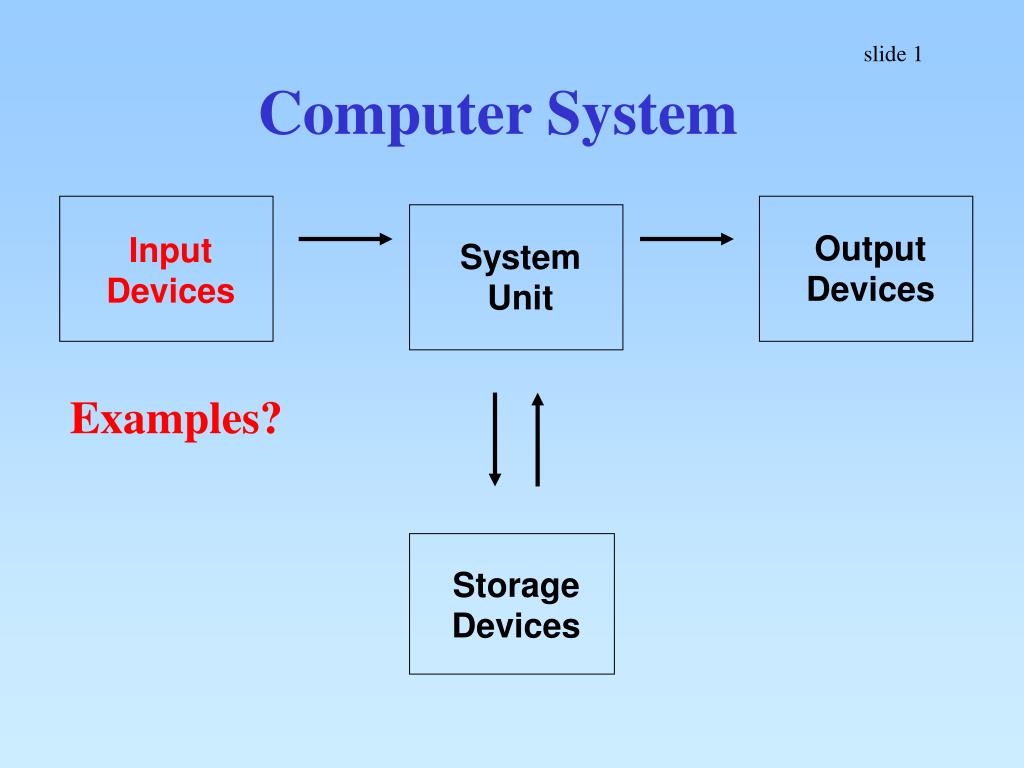
System Unit Output Devices Input Devices Storage Devices slide 1 Computer System Examples?
slide 2 Primary Input Devices • Keyboard • Mouse
slide 3 Uses Of Keyboard • Enter Data • Alphabets • Numbers • Issue Commands
slide 4 Keyboards
slide 5 Parts of Keyboard Status Indicators Numeric Keypad Cursor Control Keys Standard Keyboard
slide 6 Standard Keyboard Standard keyboards of different brands look alike.
slide 7 Standard Keyboard Alphabetic Keys are arranged like those on a typewriter.
slide 8 Standard Keyboard Numeric Keys (Number Row)
slide 9 Standard Keyboard
slide 10 Standard Keyboard Tab • Advances cursor to the next tab stop • Capitalise all the alphabets typed • Not produce the top symbol on keys that contain two symbols, eg, number row Caps Lock
slide 11 Standard Keyboard • Hold down the Shift Key to capitalise the alphabets typed • Produce the top symbol on keys that contain two symbols Shift
slide 12 Standard Keyboard Backspace Key deletes one character to the left of the cursor.
slide 13 Standard Keyboard • Enter Key • Advances the insertion point to the next line • Used to execute a command
slide 14 Standard Keyboard
slide 15 Standard Keyboard Ctrl Alt • Used in conjunction with another key to expand the functionality of the keyboard • Depends on the software being used
slide 16 Standard Keyboard
slide 17 Standard Keyboard Esc • Cancels an operation Function Keys • Are numbered and assigned different functions in different software packages • Can save keystrokes
slide 18 Numeric Keypad • Numbers can be keyed in by use of • Numeric Row of Standard Keyboard • Numeric Keypad
slide 19 Numeric Keypad Permits rapid numeric data entry
slide 20 Numeric Keypad If a key has two symbols, it serves two functions: (1) numeric key (2) cursor control key Switch between 2 functions by use of Num Lock key
slide 21 Numeric Keypad • When Num Lock is pressed, the numeric keypad is in numeric mode and produces numbers. • Num Lock light is on.
slide 22 Numeric Keypad • When Num Lock is pressed again, the numeric keypad turns to cursor control mode and moves the cursor in the direction indicated by the arrows. • Num Lock light is off.
slide 23 Toggle Keys • Switches back and forth between two modes • Num Lock, Cap Lock and Scroll Lock
slide 24 Toggle Keys - Cap Lock • Switches between uppercase mode and lowercase mode • When Cap Lock is pressed, user toggles into uppercase mode. • When Cap Lock is pressed again, user toggles back into lowercase mode.
slide 25 Toggle Keys - Scroll Lock • The function of the Scroll Lock key depends on the software being used. • It is rarely used with today’s software.
slide 26 Status Indicators Status Indicators show the status of each toggle key: Num Lock, Caps Lock and Scroll Lock.
slide 27 Status Indicators Scroll Lock Num Lock Caps Lock
slide 28 Cursor Control Keys (2) (1)
slide 29 Cursor Control Keys 2 sets of Cursor Control Keys: (1) Located between Standard Keyboard and Numeric Keypad (2) When the Numeric Keypad is in cursor control mode
slide 30 Cursor Control Keys Arrow Keys
slide 31 Cursor Control Keys • Arrow Keys • Select options from a menu • Move cursor up, down, left and right • Delete Key • Deletes the character at the cursor position
slide 32 Cursor Control Keys • Insert Key • A toggle key • Switches between insert mode and typeover mode • Insert mode allows additional text to be inserted. • Typeover mode makes the new text type over the existing text.
slide 33 Cursor Control Keys • Home Key • Moves cursor to the beginning of a line or the beginning of a document, depending on the software being used. • End Key • Moves cursor to the end of the line or the end of a document, depending on the software being used.
slide 34 Cursor Control Keys • Page Up Key • Displays the previous screen of information • Page Down Key • Displays the next screen of information
slide 35 Other Keys
slide 36 Other Keys • Print Screen Key • Prints what is currently being displayed on the screen • Pause Key • Temporarily suspend the current task
slide 37 Keyboard Provides three basic ways for issuing commands: (1) Key in the command using the alphanumeric portion of the keyboard (2) Tap a function key (3) Use the arrow keys to select a menu option from the displayed menu
slide 38 Keyboard Skills In order to use the keyboard efficiently, users are encouraged to develop their Keyboard Skills.