
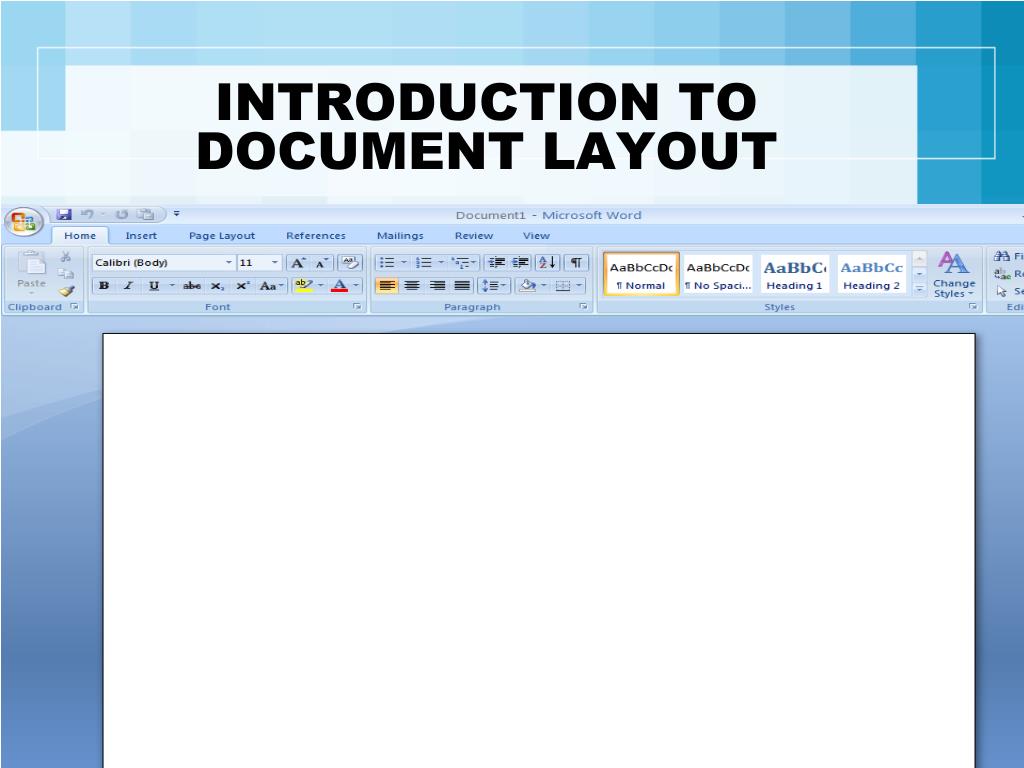
Introduction to Document Layout in Word 2007

This guide provides essential steps for setting up a document layout in Word 2007. It covers how to adjust font settings to Times New Roman, set line spacing to single, and ensure no extra spaces are added. Instructions include how to insert a footer with the lesson name and date, and ensure that no headers or footers are visible when scrolling to the top of the page. Follow the lesson layout carefully to meet the required formatting and save the document appropriately for use in further document processing tasks.
Télécharger la présentation 
Politique de téléchargement : le contenu du site vous est fourni TEL QUEL pour votre information et votre usage personnel ; il ne peut être vendu, concédé sous licence ni partagé sur d’autres sites sans l’accord de son auteur.Le contenu vous est fourni TEL QUEL, pour votre information et votre usage personnel uniquement. Téléchargez la présentation en cliquant sur ce lien. Lors du téléchargement, si vous ne parvenez pas à télécharger une présentation, l’éditeur a peut-être supprimé le fichier de son serveur.Pendant le téléchargement, si vous ne parvenez pas à obtenir une présentation, le fichier a peut-être été supprimé par l’éditeur.
F I N