Step-by-Step Guide to Creating a Turnitin Account for Students
40 likes | 151 Vues
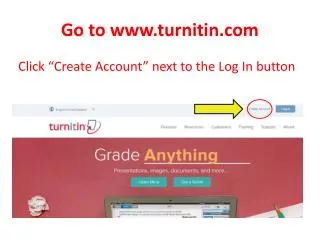
This guide provides a clear, step-by-step process for students to create their Turnitin accounts. Follow these instructions: Go to www.turnitin.com and click "Create Account" next to the Log In button. Do not fill in the email or password fields. Select "Student" and enter the appropriate Class ID based on your grade level. Use your full first name for the password and your student email in the specified format. Answer the security questions accurately, but remember not to click "Agree" until instructed.


Step-by-Step Guide to Creating a Turnitin Account for Students
E N D
Presentation Transcript
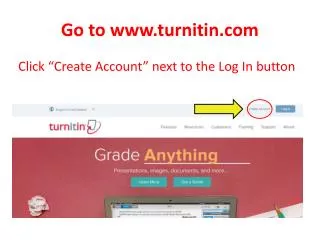
Go to www.turnitin.com Click “Create Account” next to the Log In button
Do NOT fill in the email or password boxes.Click “Student” instead.
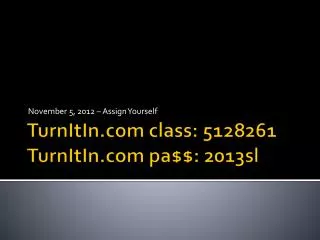
Class ID: 1st: 8664955 2nd: 8664966 4th: 8664979 6th: 8664989 7th: 8665001 Password: Lauer Full first name (not a nickname)
Email address StudentID#@gpschools.com Password Your computer log-on password Secret Question Select Library card # Question Answer Enter your student ID # DO NOT CLICK “AGREE” YET!