Efficient Role Assignment and Reporting in KECI
120 likes | 235 Vues
This guide provides an overview of the KECI system for managing user roles, searching credentials, and monitoring application statuses. It outlines the steps to assign roles, generate District Role Reports, and track Expired Certification Reports. Users can search by SSN or name without entering district or school information. It emphasizes the need for accurate role updates prior to the LEAD process and provides contact information for help. Additionally, it directs users to the online help resource for assistance with KECI permissions.


Efficient Role Assignment and Reporting in KECI
E N D
Presentation Transcript
Assign Roles Search credentials View application status Search permissions Create a list of people with specific permissions Create and print District Role Report and Expired Certification Report Functions of KECI
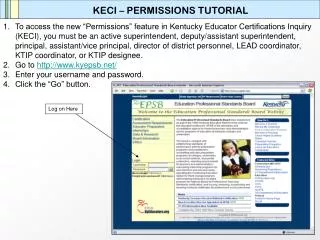
Permissions Help • For help using the permissions tool, go to http://www.kyepsb.net/help/index.asp and click “KECI Permissions”
Assign Roles • Search by SSN or Name • Do not enter the district or school • Click on the person’s name
Assign Roles • Choose “Roles”
Assign Roles • Choose “Click Here to Add New Role”
Roles Update • Prior to LEAD • Verify roles of principals, MUNIS contact, superintendent, and LEAD coordinator • Initial role information will come from MUNIS • After LEAD is complete: • Verify KECI role assignments • Use the roles wizard to apply roles as assigned in MUNIS • Make corrections • Update as people move in or out of the district • Information in KECI must be correct and up to date to create accurate role reports and expired certification reports!
Contact information • Contact the LEAD help desk at 1-888-598-7667 or EPSBLEADTEAM@ky.gov • Contact Cindy Godsey at 1-888-598-7667 or Cindy.Godsey@ky.gov