PyMol Installation
70 likes | 82 Vues
This guide provides a detailed step-by-step process to download and install PyMol on your computer for educational use only. Follow the instructions to access the download link, enter your credentials, and complete the installation process.


PyMol Installation
E N D
Presentation Transcript
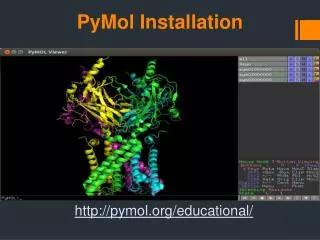
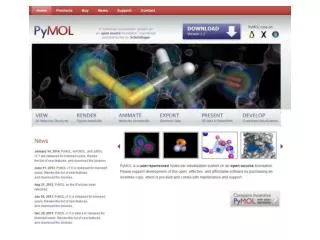
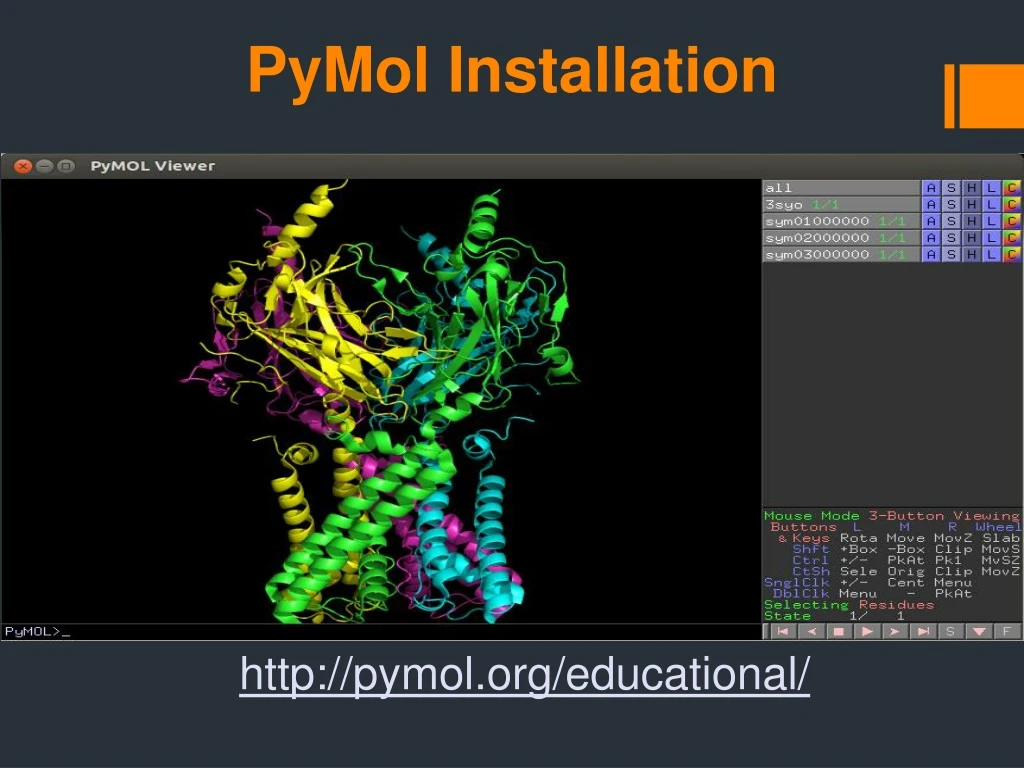
PyMol Installation http://pymol.org/educational/
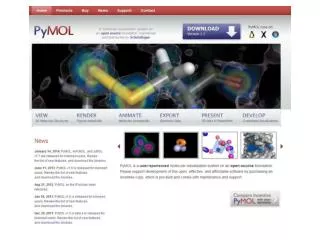
Scroll to the bottom of the Educational-Use-Only Pymol webpage and click “register here” Fill out the requested Information:
Scroll to the bottom of the page confirm agreement by entering the given characters: Read License agreement Click “I Agree”
Download credentials are sent to your email address: • Follow the URL link (http://pymol.org/ep) provided at the bottom of the email • You will be prompted to enter your username and password provided in the email (Case sensitive)
PyMol Education Products Webpage • Downloadable products are located at the bottom half of the page. • Choose the most current release that is compatible with your operating system
Click “Run” to begin setup • Follow the prompt and click “next” to begin installation • Click “next” to install Pymol to the default folder • Select all Pymol file types, public file types, and 3rd party file types to open by default into the Pymol install. Click “next” **For Macintosh operating systems, Pymol will automatically install upon selecting the Macintosh compatible Pymol build
Complete Installation: • Click “Install” at the Ready to install Pymol window • Click “Finish” to complete Installation