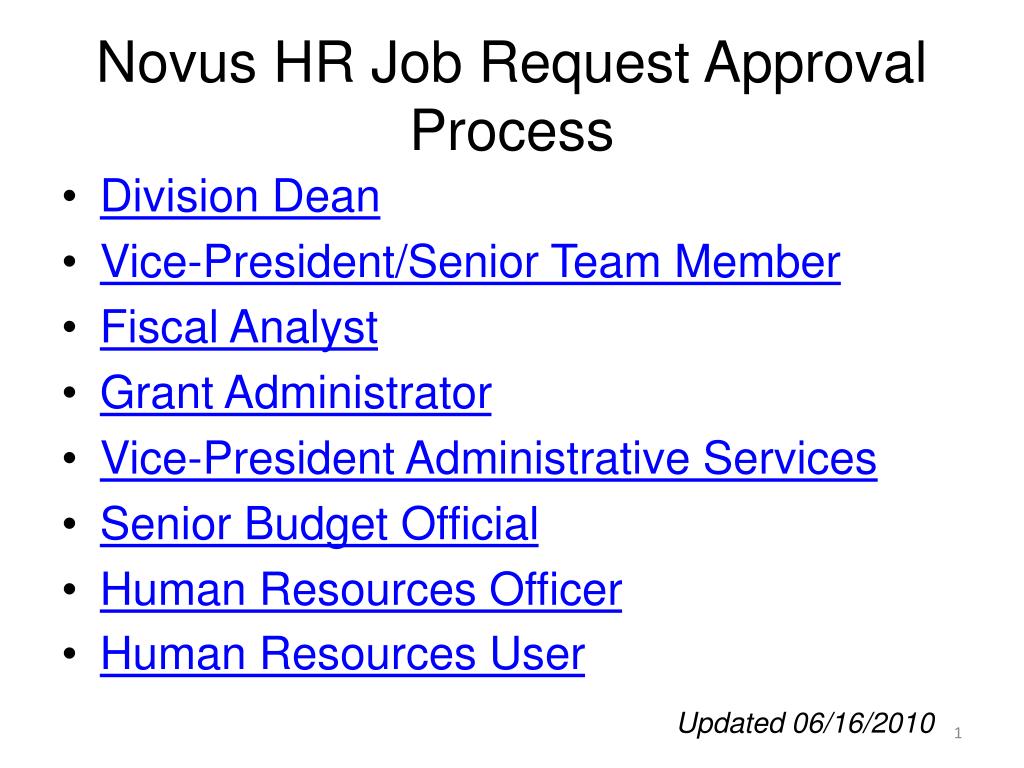
Novus HR Job Request Approval Process. Division Dean Vice-President/Senior Team Member Fiscal Analyst Grant Administrator Vice-President Administrative Services Senior Budget Official Human Resources Officer Human Resources User. Updated 06/16/2010. novushr.pgcc.edu.
Une image / un lien ci-dessous est fourni (tel quel) pour télécharger la présentation
Politique de téléchargement : le contenu du site vous est fourni TEL QUEL pour votre information et votre usage personnel ; il ne peut être vendu, concédé sous licence ni partagé sur d’autres sites sans l’accord de son auteur.Le contenu vous est fourni TEL QUEL, pour votre information et votre usage personnel uniquement.Téléchargez la présentation en cliquant sur ce lien.Lors du téléchargement, si vous ne parvenez pas à télécharger une présentation, l’éditeur a peut-être supprimé le fichier de son serveur.Pendant le téléchargement, si vous ne parvenez pas à obtenir une présentation, le fichier a peut-être été supprimé par l’éditeur.
F I N
Plus de contenu associé
Transcription de la présentation
Novus HR Job Request Approval Process • Division Dean • Vice-President/Senior Team Member • Fiscal Analyst • Grant Administrator • Vice-President Administrative Services • Senior Budget Official • Human Resources Officer • Human Resources User Updated 06/16/2010
novushr.pgcc.edu Login to Forticlient. Open a web browser and type novushr.pgcc.edu Type in the username and password. Username and password will be the same as your Owl Link user ID. (Password for the first time is: novushr) Click the login button. After logging in the first time, change your password to match your password for Owl Link. Return to Table of Contents
novushr.pgcc.edu Login to Forticlient. Open a web browser and type novushr.pgcc.edu Type in the username and password. Username and password will be the same as your Owl Link user ID. (Password for the first time is: novushr) Click the login button. After logging in the first time, change your password to match your password for Owl Link. Return to Table of Contents
novushr.pgcc.edu Login to Forticlient. Open a web browser and type novushr.pgcc.edu Type in the username and password. Username and password will be the same as your Owl Link user ID. (Password for the first time is: novushr) Click the login button. After logging in the first time, change your password to match your password for Owl Link. Return to Table of Contents
If disapprove is selected, enter a comment, e.g., position is frozen and click disapprove and then submit and then click save and exit. This will restart the job posting request process and send the job posting request back to the initiator.
VP/ Senior Team If there are other job posting requests waiting to be approved, the job approval posting requests screen will reappear. Return to Table of Contents
novushr.pgcc.edu Login to Forticlient. Open a web browser and type novushr.pgcc.edu Type in the username and password. Username and password will be the same as your Owl Link user ID. (Password for the first time is: novushr) Click the login button. After logging in the first time, change your password to match your password for Owl Link. Return to Table of Contents
Fiscal Analyst Click Search to Search for Job Posting Requests. Under Requisition Title, click on the link of the position title that you need to review. Return to Table of Contents
If disapprove is selected, enter a comment i.e. position is frozen and click disapprove and then submit and then click save and exit. This will restart the job posting request process and send the job posting request back to the initiator.
VP/ Senior Team If there are other job posting requests waiting to be approved, the job approval posting requests screen will reappear.
The Fiscal Analyst needs to immediately log in again to approve positions that are not grant funded. The Fiscal Analyst will need to type a comment on the work flow tab that reads Non-Grant Funded Position (RAM) and then approve the JPR for the Grant Administrator. Then click submit. Return to Table of Contents
novushr.pgcc.edu Login to Forticlient. Open a web browser and type novushr.pgcc.edu Type in the username and password. Username and password will be the same as your Owl Link user ID. (Password for the first time is: novushr) Click the login button. After logging in the first time, change your password to match your password for Owl Link. Return to Table of Contents
Click on search to see job posting requests for your department, division, or area that are awaiting approval. The ± symbol indicates a category that is not accessible to you due to your access rights. The Grant Administrator may receive an email notifications for JPRs when there may not being anything to approve. The Fiscal Analyst will be approving on behalf of the Grant Administrator if the position is a non-grant funded position.
Grant Under Requisition Title, click on the link of the position title that you need to review.
Click on the Details Tab. Check to see if the position is grant funded. If the position is grant funded, make sure that the question “Is this position grant or restricted funds?” is answered yes or no. If the position is grant funded, click on Grant Funds under the Funds type question. Verify the Date Funded Through box. Use the calendar to select a date and include a comment stating that the position is grant funded in the comment box. Click Save to continue.
If the job posting meets the approval requirement, click on the workflow tab. Then check the approve selection located inside ‘My Department Box’. Click submit to send the approved work flow to the Vice President of Administrative Services. Then click save and exit to save the workflow action.
Grant If there are other job posting requests waiting to be approved, the job approval posting requests screen will reappear. Return to Table of Contents
novushr.pgcc.edu Login to Forticlient. Open a web browser and type novushr.pgcc.edu Type in the username and password. Username and password will be the same as your Owl Link user ID. (Password for the first time is: novushr) Click the login button. After logging in the first time, change your password to match your password for Owl Link. Return to Table of Contents
If disapprove is selected, enter a comment i.e. position is frozen and click disapprove and then submit and then click save and exit.This will restart the job posting request process and send the job posting request back to the initiator.
VPAdmin If there are other job posting requests waiting to be approved, the job approval posting requests screen will reappear. Return to Table of Contents
novushr.pgcc.edu Login to Forticlient. Open a web browser and type novushr.pgcc.edu Type in the username and password. Username and password will be the same as your Owl Link user ID. (Password for the first time is: novushr) Click the login button. After logging in the first time, change your password to match your password for Owl Link. Return to Table of Contents
Connexion au compte
Connectez-vous pour publier votre contenu sur SlideServe.