Comprehensive Guide to User and Group Account Management in System Administration
This guide provides essential insights into configuring user and group accounts, effective file backup strategies, and task scheduling for system administrators. Learn how to utilize commands such as useradd, userdel, groupadd, and proper file backup methods with tar and cpio. Understand scheduling with cron and crontab, monitoring system performance, and solving common user login issues. Additionally, discover techniques for speeding up systems, monitoring disk usage, and securing user accounts, ensuring a well-managed administrative environment.

Comprehensive Guide to User and Group Account Management in System Administration
E N D
Presentation Transcript
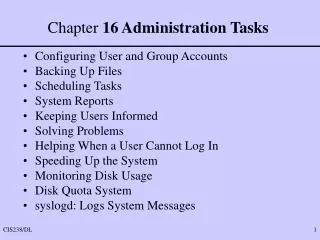
Chapter 16 Administration Tasks • Configuring User and Group Accounts • Backing Up Files • Scheduling Tasks • System Reports • Keeping Users Informed • Solving Problems • Helping When a User Cannot Log In • Speeding Up the System • Monitoring Disk Usage • Disk Quota System • syslogd: Logs System Messages
Configuring User and Group Accounts • system-config-users • useradd (adduser) • userdel • groupadd • groupmod
useradd • Adds a user account # useradd –g 500 –c “Alex Watson” alex • /etc/login.defs – creates home directory • /etc/skel – puts in default startup scripts • .bashrc • .bash_profile • .xinit, etc • userdel – deletes a user, home directory, all files • usermod – modifies a users properties # usermod-e “12/31/04” rtfm
groupadd • Adds a group # groupadd –g 1024 rtfm • groupmod – modifies group properties # groupmod –g 1025 rtfm # groupmod –n manuals rtfm • groupdel – deletes a group (but not members)
Backing up Files • Extremely important function of system administrators of any system • Choosing a medium • Tape is most popular based on cost per MB/GB • CDROM/DVD • Other disks
Backup utilities • tar – tape archive • Anyone can use, default is to tape • tar --help for list of options $ tar –ztvf /dev/st0 OR $ tar --gzip --list --verbose --file /dev/st0 • cpio – copy input output • More popular than tar, easier to use $ cpio –ivmd /home
Performing backups with tar and cpio • tar tar c `find / -mtime –1 ! –type d –print` • cpio find / -mtime –1 | cpio –o > /dev/rmt1 • taper Graphical interface backup utility used with RH Linux
Restoring with tar and cpio • tar tar –xp /home/mydirectory • cpio cpio -im `*bethany.txt$` < /dev/rmt0 • Viewing tape contents: tar –cv / > /tmp/backup.TOC find / -print | cpio –cv > /dev/rmt0 2> /tmp/backup.TOC
dump/restore • – sys admin only tool • Used to backup files • Can use one of 10 levels • Each level defers to previous level • 0 is full backup, 1-9 are less than full • Incremental or differential
Scheduling tasks • cron and crontab • Runs routine tasks • Can schedule by minute, hour, day, date, day of week, month • at • Runs occasional tasks • Schedule each task only once $ at 3am tomorrow at> reboot at> Control D Job 1 at 2005-04-07 0:300 • kcron – kde cron GUI
System Reports • vmstat - reports virtual memory statistics • top – lists top cpu intensive jobs/processes • ktop – kde GUI version of top
Keeping users informed • write • talk • wall • email • mesg y or n
Creating Problems • Failing to perform regular backups • Failing to test to see if backups are good!!! • Not reading and following instructions (rtfm) • Failing to ask for help when instructions are not clear • Deleting or mistyping a critical file/command
Solving Problems • When a user cannot log in • Who is affected • Check caps lock key • Make sure user if valid (passwd file entry) • Change user’s password • Check user’s startup files • Check hardware connections • check configuration files
Speeding up your system • Check memory • Check hardware settings/configurations • Check disk • Check network components • Check for viruses, worms, etc. • Check firewall settings
Find open files • Use lsof (ls for open files) zombies • Use lsof –sp pid to find zombie processes • Or ps aux and look for old processes that do not have the owner logged on • Use –rn to check each n seconds.
Keep a machine log • Keep a log of all reported problems • Review the log to see if there is a trend • Use the log to see how you may have fixed old problems – especially if they return
Keep the system secure • Use shadow passwords using MD5 • Do not use the default linux/unix encryption • Check your user’s passwords with crack or cops or johntheripper • Use CERT
Monitor disk usage • df – to check free space • du – to check disk usage • Use –h option for “human readable” output in KB, MB, GB rather than block usage. • Use logrotate to rotate your old logs so they don’t get too large • Check for old un- or seldom used files and archive them
Removing unused space • Defragment your disks regularly • ext2/ext3 minimize fragmentation but can’t prevent it entirely • Use 3rd party defragmentation software or • Manually defrag using copy and move commands
Log system messages • Controlled by syslogd – system log daemon • Selectors: • auth authpriv cron daemon kern • lpr mail news user uucp local0-local7 • Priority • debug info notice warning • err crit alert emerg (panic) • Actions: • Log • Send to console • Send to file • Send to email address