Download
1 / 1
10 likes | 144 Vues
This Job Aid is designed for employees creating personal goals in NYCAPS. It provides step-by-step instructions on how to assign weights to each goal and section, ensuring the total equals 100%. Employees will learn how to navigate the system, enter weights, and finalize their documents correctly. Following the outlined steps will help employees effectively manage their performance goals and understand the significance of each goal's weight in the overall evaluation process.

E N D
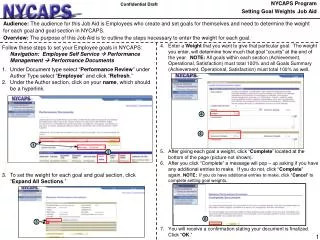
NYCAPS Program Setting Goal WeightsJob Aid Confidential Draft 4 4 Audience: The audience for this Job Aid is Employees who create and set goals for themselves and need to determine the weight for each goal and goal section in NYCAPS. Overview: The purpose of this Job Aid is to outline the steps necessary to enter the weight for each goal. • 4. Enter a Weight that you want to give that particular goal. The weight you enter, will determine how much that goal “counts” at the end of the year. NOTE: All goals within each section (Achievement, Operational, Satisfaction) must total 100% and all Goals Summary (Achievement, Operational, Satisfaction) must total 100% as well. • 5. After giving each goal a weight, click “Complete” located at the bottom of the page (picture not shown). • 6. After you click “Complete” a message will pop – up asking if you have any additional entries to make. If you do not, click “Complete”again. NOTE: If you do have additional entries to make, click “Cancel” to complete setting goal weights. • 7. You will receive a confirmation stating your document is finalized. Click “OK.” • Follow these steps to set your Employee goals in NYCAPS: • Navigation: Employee Self Service Performance Management Performance Documents • Under Document type select “Performance Review” under Author Type select “Employee” and click “Refresh.” • Under the Author section, click on your name, which should be a hyperlink. • 3. To set the weight for each goal and goal section, click “Expand All Sections.” 1 2 Author 6 3