Download
1 / 5
50 likes | 166 Vues
This guide provides step-by-step instructions for logging into the Course Management System (CMS) and Linux from both on-campus and off-campus locations at Binghamton University. For on-campus, use a TN3270 client and SSH sessions to access your VM account. For off-campus login, navigate to the SSL connection and use your PODS or BGM user ID and password to establish a secure network connection. It also covers creating a VNC password for remote access. Follow the procedures tailored for your specific environment to ensure a smooth login experience.

E N D
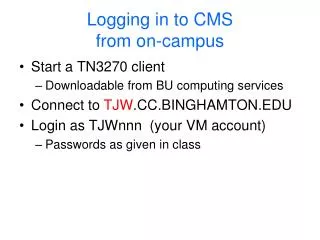
Logging in to CMSfrom on-campus • Start a TN3270 client • Downloadable from BU computing services • Connect to TJW.CC.BINGHAMTON.EDU • Login as TJWnnn (your VM account) • Passwords as given in class
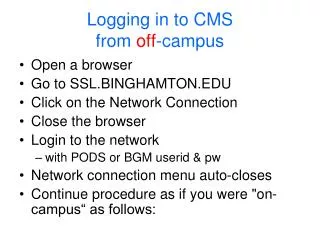
Logging in to CMSfrom off-campus • Open a browser • Go to SSL.BINGHAMTON.EDU • Click on the Network Connection • Close the browser • Login to the network • with PODS or BGM userid & pw • Network connection menu auto-closes • Continue procedure as "on-campus"
Logging in to Linuxfrom on-campus • Login to CMS (as previously discussed) • At the prompt, enter 1 for Linux • Enter #CP DISC and close the 3270 window • Start an SSH session (e.g.; Putty) • Connect to TJWnnn • Login as (same for everybody): • root & change the password • joeuser pw=taco32 Continued…
Enter: vncserver Create a vnc password if requested I suggest using the same as your root pw Close the window (don't type anything) Start TightVNC on Windows Connect again to: TJWnnn.CC.BINGHAMTON.EDU Use the vnc password you created above Continue on-campus login
Off-campus Linux login • Start the Remote Connect via SSL.BINGHAMTON.EDU (same as for CMS) • Continue from the "on-campus" version